
Unstable internet can break video calls, ruin gaming sessions, and slow everything down. Here’s a practical guide to getting a stable internet connection without guesswork.
A fast internet plan doesn’t mean much if your connection drops, stutters, or randomly slows down. Whether you’re working remotely, gaming online, or streaming video, stability matters more than raw speed.
The good news: most internet issues come from a small set of common problems and many of them are easy to fix.
Start with the basics (yes, really)
Before changing settings or buying new gear, check the obvious:
- Restart your modem and router
- Make sure all cables are firmly connected
- Check if the issue affects all devices or just one
If only one device has problems, the issue is likely local. If everything disconnects, look at your network or ISP.
Use a wired connection when possible
If stability is critical, Ethernet beats Wi-Fi every time.
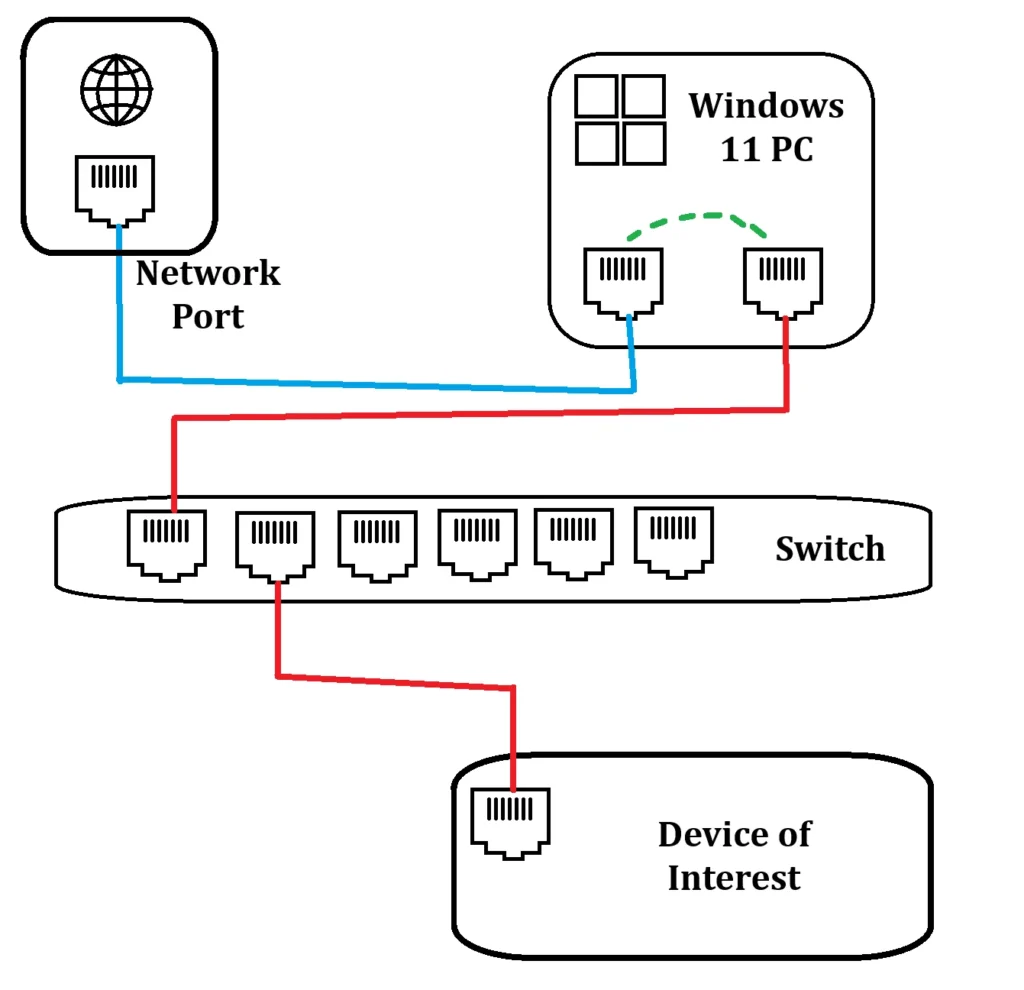
A wired connection:
- eliminates wireless interference
- reduces latency and packet loss
- delivers consistent speeds
For remote work, gaming, or streaming, connecting your main PC or console directly to the router is the simplest way to stabilize your internet.
Fix common Wi-Fi problems
If you rely on Wi-Fi, placement and settings matter more than people think.
Router placement
- place the router in a central, elevated location
- avoid thick walls, metal objects, and appliances
- keep it away from microwaves and cordless phones
Switch Wi-Fi bands
- use 5 GHz for speed and stability at short range
- use 2.4 GHz for longer range but lower speeds
Modern routers let you separate these bands or automatically switch between them.
Upgrade old network hardware
If your router is more than 4–5 years old, it may be the bottleneck.
Look for:
- Wi-Fi 6 or Wi-Fi 6E support
- stronger CPUs and more RAM
- better handling of multiple devices
Old routers struggle with today’s homes filled with phones, TVs, smart devices, and laptops.
Reduce network congestion
Too many active devices can make your connection unstable.
Try this:
- pause large downloads during work hours
- limit background cloud syncs
- disconnect unused devices
Many routers include QoS (Quality of Service) settings that prioritize video calls, gaming, or work traffic.
Check for interference and signal overlap
In apartments or dense neighborhoods, Wi-Fi networks often overlap.
Use a Wi-Fi analyzer app to:
- find less crowded channels
- manually set your router to a cleaner channel
This alone can dramatically reduce drops and lag.
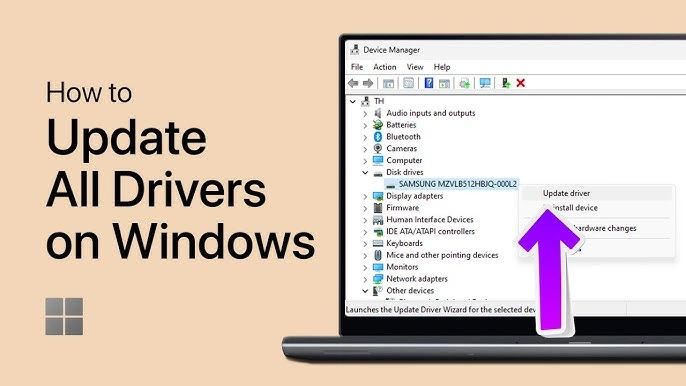
Update firmware and drivers
Outdated software can cause instability.
Make sure:
- your router firmware is up to date
- network drivers on your PC or laptop are current
Manufacturers often fix connection issues quietly through updates.
Test Your Internet Line
Run tests at different times of day:
- speed test
- ping and packet loss test
If speeds drop sharply during peak hours, the issue may be ISP congestion, not your hardware.
When to Contact Your ISP
Reach out to your internet provider if you notice:
- frequent disconnects
- high packet loss
- unstable speeds on a wired connection
Ask about:
- line quality checks
- modem compatibility
- outages or local congestion
Sometimes the problem is outside your home.
A stable internet connection comes from:
- reliable hardware
- smart Wi-Fi setup
- reduced interference
- realistic expectations from your ISP
Speed is nice, but stability is what actually makes the internet usable.
Subscribe!
Subscribe to our newsletter and be in touch with high-tech news
Top Read
A LEGO game wants RTX 3080: Why LEGO Batman’s system requirements shock everyone

MSI launches XpertStation WS300 with Nvidia GB300 Blackwell: up to 496GB RAM and supercomputer hardware in desktop format

Cooler Master’s G360 Dragon Shadow SE Puts an Infinity Mirror on Your CPU Block for $66
EPOMAKER RT100 PRO Ships With a Screen You Can Rip Out for Extra Keys

Intel Core Ultra 7 270K Plus and Core Ultra 5 250K Plus: 24 Cores, 5.5 GHz, $299
